 HeyMate
Choose the relationship you want to see
A drawing is useful when a paragraph hides the structure of a problem. Ask for the layers in a recipe, the path between two parts, or a labeled view of an object. Start by naming the concept and the kind of explanation you need. A simple diagram can be more useful than a detailed picture if the goal is to understand what connects to what.
Explain the relationship between these parts with a simple labeled diagram. Keep the first version minimal. Ask me what is unclear before adding detail. Distinguish the conceptual sketch from exact dimensions.
See the actual examples
- Chicken biryani explanation: a 2D sketch of ingredients and layers.
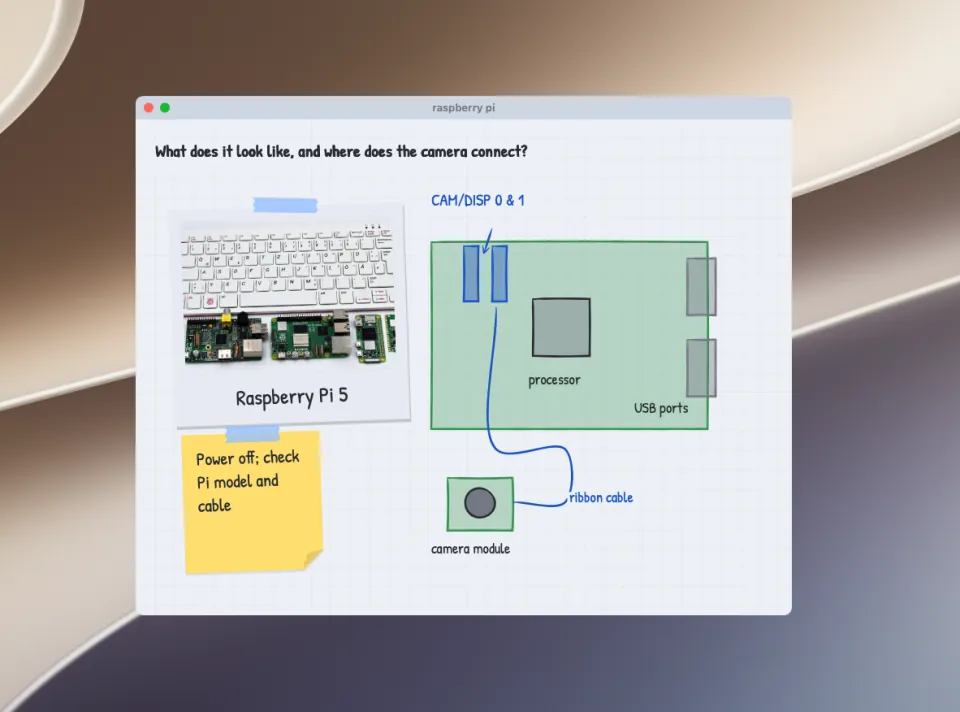
- Raspberry Pi camera diagram: a drawn explanation of the board, connector, and cable.
- 3D board explanation: a view of the board’s shape, ports, and parts.
The website recordings are actual HeyMate examples, condensed and sped up, with silent previews. They show the output for those questions; they are not a guarantee that every future question will produce the same quality or that the labels are technically authoritative.
Ask follow-ups that improve the explanation
Which part should I look at first? Show the direction of the connection and explain it in one sentence. If you are uncertain about the hardware revision, ask me to identify it.
For a recipe or process, ask what happens before and after the current step. For a diagram, ask which labels refer to physical parts and which describe an abstract relationship. For a 3D view, ask for a simpler angle instead of adding more decoration. The aim is comprehension, not a more impressive graphic.
Verify before using a drawing as instructions
A generated hardware diagram is not a wiring specification. Check the manufacturer’s documentation for the exact model and revision, connector orientation, power requirements, and pin assignment. Do not connect components or power a circuit based only on an AI sketch. Similar care applies to any diagram whose error could damage equipment or affect safety.
A visual explanation can help you understand official instructions, but it should not silently replace them. Tell HeyMate when you are using the drawing for a real task, and ask which details need independent checking. If it cannot identify a source, keep the picture conceptual.
Try a small question on your Mac
Use sample material and a compatible provider, then ask one question with a clear learning goal. If you need the assistant to interpret the current screen, use a vision-capable provider and review screen permissions. The optional Apple Intelligence provider in HeyMate is text-only and cannot see your screen.
Explore the recorded visual answers, provider connection guide, and privacy details. Questions and context go to the selected provider when required; open-source app code does not make every provider interaction local.
Related reading
- Create a study tutor mate that helps you practice on Mac
- Use HeyMate for a focused Figma or website design review
- Learn a Mac app with AI guidance, one step at a time
Try it with one small task.
HeyMate is free and open source for macOS 14.2 and later. Bring your own AI; provider limits and optional service fees apply. Current builds are self-signed and not Apple notarized.